
FortiAnalyzer virtual appliance setup. Version 5.4.x
Disk configuration problem:

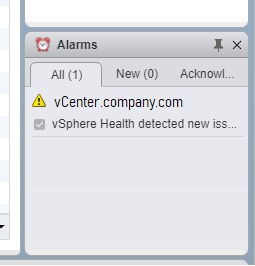
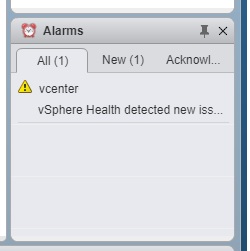
“Hard drive allocated for this VM instance” “is less than the licensed VM storage volume” .
How do I remove this annoying warning?
Behavior: If I select the alert, a link to the FortiNet website is displayed: http://help.fortinet.com/fa/vm-install/54/index.htm which is not helpful.
Solution: Frustratingly, to get this alarm to go away, you do need to add hard drives to the licensed limit (3.5 TB in my case). I could not find any way to clear or acknowledge the alarm.
BUT, if you are using a virtualization solution, you CAN use thin provisioning to keep the size low. Don’t worry, when you configure your quota limits in the next section, you can set how much disk space will be used.
To do this, shut down the FortiAnalyzer. Add the virtual hard drives using your virtualization manager. Turn the FortiAnalyzer back on. Once it finishes booting, log onto the admin website and access the CLI window.
Enter command execute lvm extend . Reboot again if told to.
But… you will still have a problem with log retention…
The next configuration problem with the FortiAnalyzer virtual appliance: Quota limits
FortiAnalyzer does not automatically allocate available disk space for log storage.
Symptom: When you try to run reports, there is very little historical data. Or no data from yesterday or before.
Symptom: FortiAnalyzer is overwriting old report data.
Symptom: You have to run a report from the last few hours to get a result.
This is because the quota is tiny, so the device is automatically overwriting historic logs.
In the event log on a newly deployed appliance, you will see these errors:
“Quota for adom root has reached 90 percent of total 1000(MB)”
The Fix:
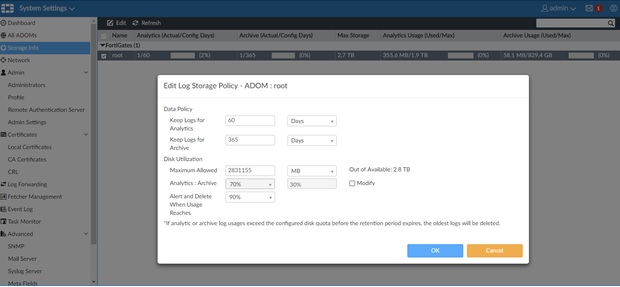
Go to System Settings > Storage Info > Edit Root > change maximum allowed disk from 1000 MB to slightly less (or equal to) your “Out of Available” total. For example, you might change this value to 2.8 TB. If you don’t want to use your entire disk ( for example, you thin provisioned it to 3.5 TB but only want to use 1TB), then set the Maximum Allowed to 1 TB.
Other setup that isn’t addressed in the quick start guide…
Other setup that isn’t addressed in the quick start guide…
Make sure to update the timezone in your System Settings.
Create at least one more user so that you don’t get locked out.
Now that you’ve configured your FortiAnalyzer, would you like to learn how to create a custom report that shows you which users are goofing off?
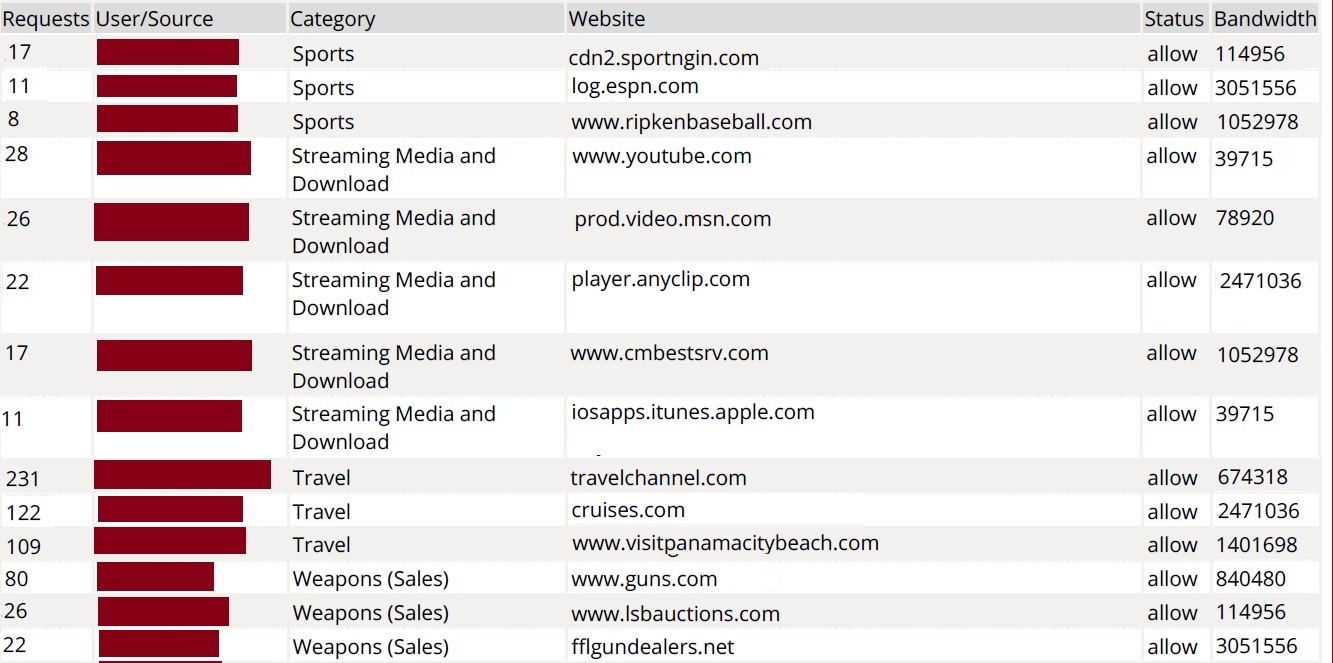
Check out instructions at: FortiAnalyzer Custom Report – All users web browsing by category.
Interested in RESILIENT IT? Download our whitepaper here.